Printers module is home to your printers, whether auto-discovered or manually configured.
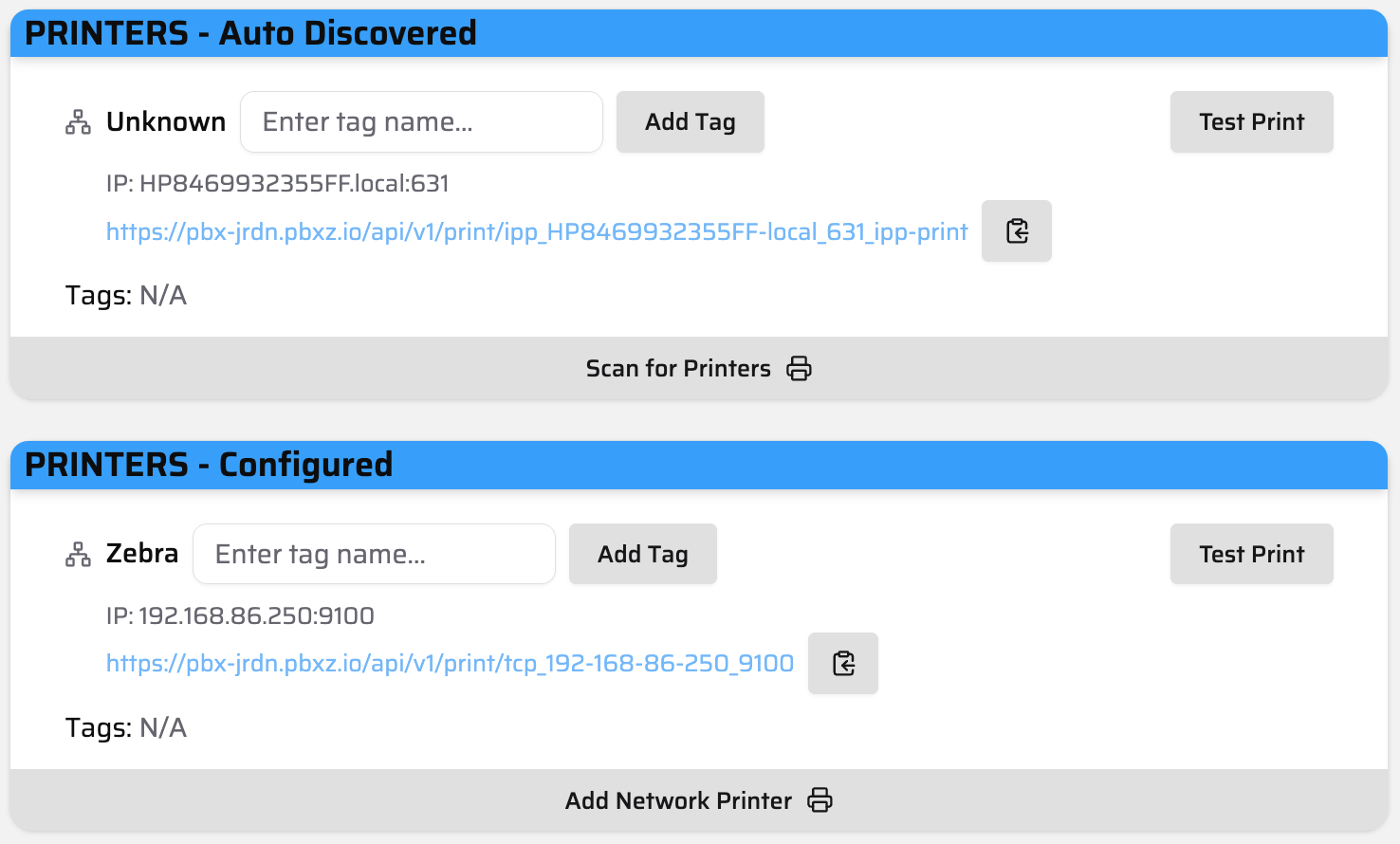
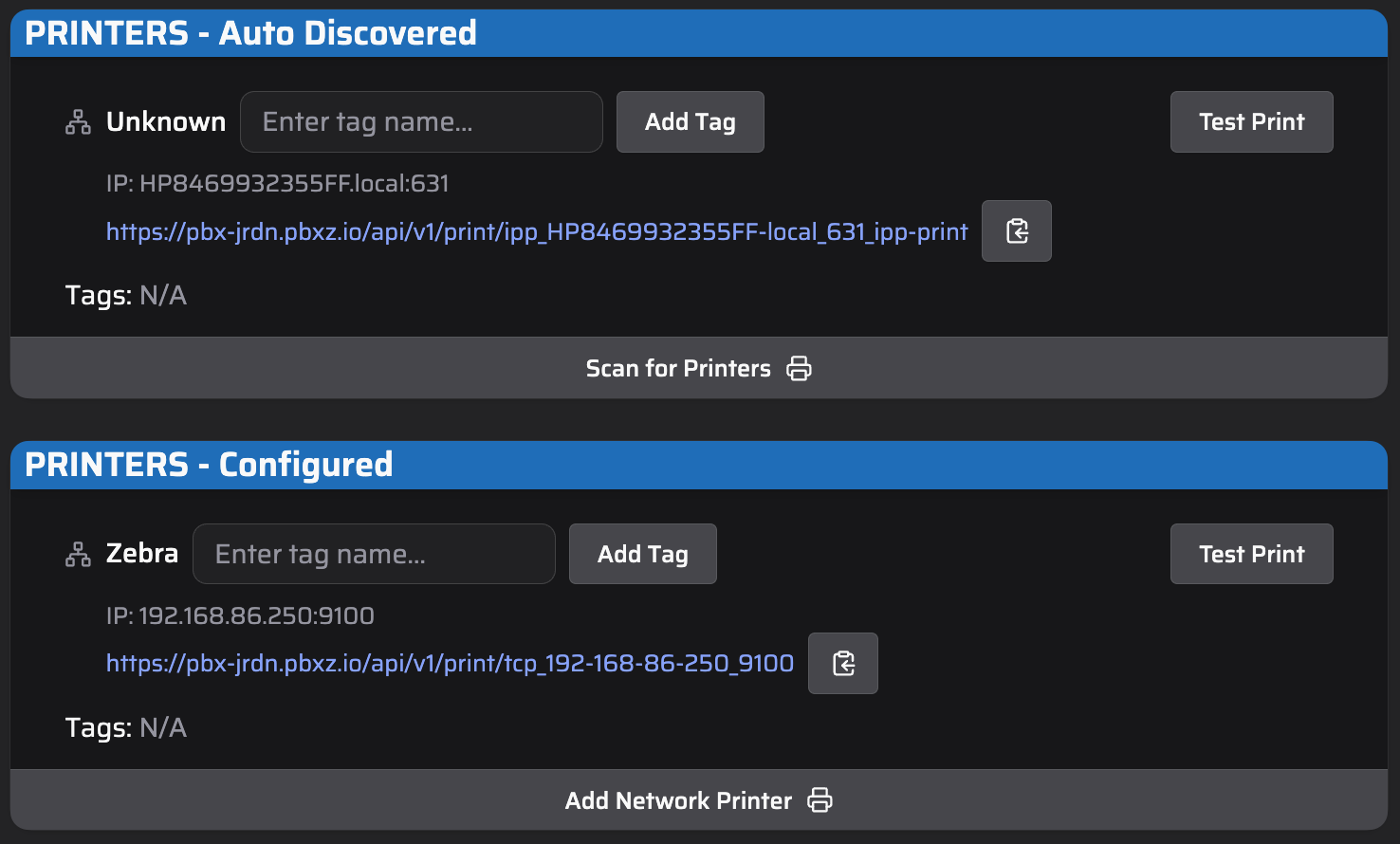
Printers module interface in Admin page
Scan for Printers to force your proxybox to re-scan for any available printers.
Under the Configured printers block - you can click Add Network Printer to manually configure a printer from an IP address and port number. Printers added this way will be added to the printer config and remembered if the proxybox is restarted.
Within the printers module, you can see details for each printer: the printer’s model name, its hostname or IP address, the generated Proxybox print URL, and any associated tags.
| Individual Printer Features | |
|---|---|
| Model Name | The name of the printer as advertised by the printer itself, or Unknown if unavailable. |
| IP Address | The hostname or IP address of the printer. For auto-discovered printers, this will be in the format <host>.local:<port>. For manually configured printers, it will be <ip>:<port>. |
| Printer Path | The Proxybox address you use to send print jobs to this printer. |
| Tags | Tags you assign to the printer. Tags can be used as a print resource instead of the printer path. For example, if you tag your Zebra ZD421 label printer with zpl, you could print to https://pbx-jrdn.pbxz.io/api/v1/print/tag_zpl, and all printers with the zpl tag will receive that job. |
| Test Print | Sends a sample print job to the printer path to test printing directly from the secure web application. |