
Settings
The Settings module contains your device’s configurable options — authentication, security, and diagnostics.
API Keys
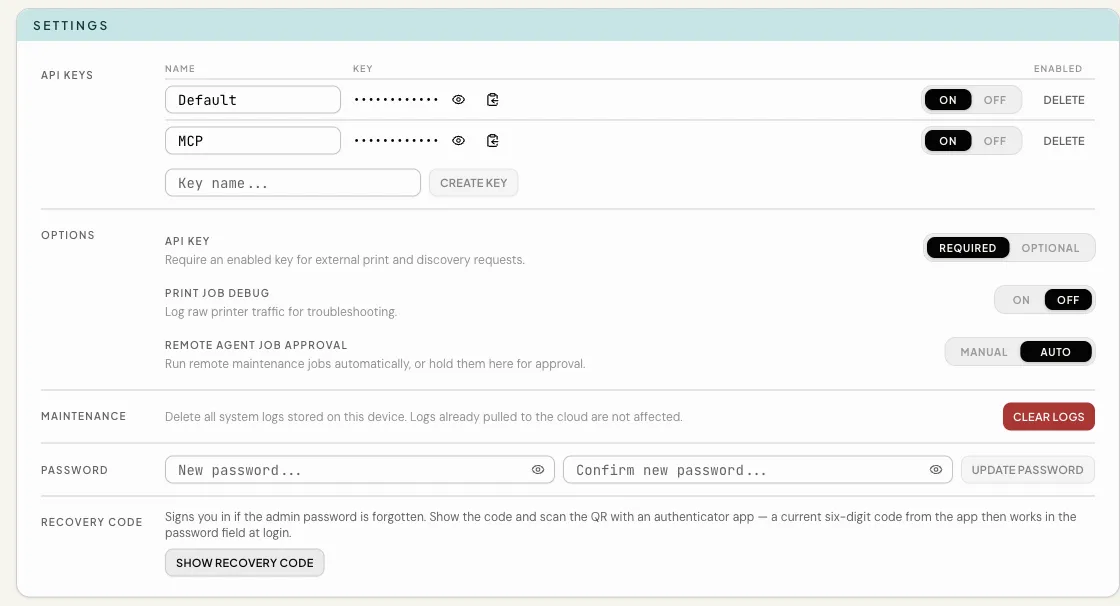
Section titled “API Keys”Each ProxyBox Zero ships with an enabled key named Default. You can create additional named keys, rename them, turn them on or off, and delete them. Use the eye button to reveal a key and the copy button to copy its full value.
The API Key option controls authentication for the printer, job, discovery, and print API routes. When set to Required, external API clients must send an enabled key in the X-API-Key header. When set to Optional, those routes are open. Other management routes still require authentication in either mode.
API key management and changing the Required or Optional setting are available only from a logged-in browser session. An API key cannot manage keys or change this setting, and settings requests authenticated by an API key do not return the key list.
You can turn off or delete every key. If the API Key option is Required and no key is enabled, external API requests are rejected until you enable or create a key.
Password
Section titled “Password”Enter the new password in New password… and Confirm new password…, then select Update Password. The entries must match and be at least 8 characters. After the password changes, your current browser session stays signed in and every other session is logged out.
Recovery Code
Section titled “Recovery Code”Select Show recovery code to reveal the QR code and secret string used to enroll an authenticator app. Store this secret securely.
If you forget the admin password, enter a current six-digit code from the authenticator app in the login Password field. After signing in, set a new password in Settings.
Print Job Debug
Section titled “Print Job Debug”Print Job Debug enables detailed diagnostic logging during print operations. When turned on, ProxyBox logs the raw data sent to and received from printers — useful for troubleshooting print formatting issues or verifying that the right data is reaching the printer.
Leave this off in normal operation. Turn it on when you’re actively debugging a print problem.
Remote Agent Job Approval
Section titled “Remote Agent Job Approval”Remote maintenance jobs, such as core software updates, reach your device from the cloud. Remote Agent Job Approval controls when they run:
- Auto (the default) runs each job as soon as it arrives.
- Manual holds each job in a list under Settings until you act on it. Each entry shows what the job does (for example, Update core software to v1.1.14), how long it has been waiting, and whether it needs a reboot. Select Approve to run it or Reject to discard it. While jobs are waiting, a pending count appears next to the option.
After you approve an update, the page shows its progress and refreshes once the device has installed it and restarted.
Maintenance
Section titled “Maintenance”Clear Logs deletes all system logs stored on the device. Use it when you want a clean log before reproducing a problem, or after a busy troubleshooting session so the next log pull contains only what matters.
Select Clear Logs, then Confirm (or Cancel to leave the logs in place). The action itself is recorded, so the first entry in the fresh log is a line confirming that the logs were cleared. Logs already pulled to the cloud dashboard are not affected, and clearing logs changes no settings.
ProxyBox Zero Docs v1.0.29