
Printers
The Printers module is where you see everything ProxyBox Zero has found on your network and USB ports. Network scanning is on by default, so when you first boot your device, it automatically scans for printers — network printers advertising via mDNS/Bonjour and anything plugged in via USB show up here without any configuration.
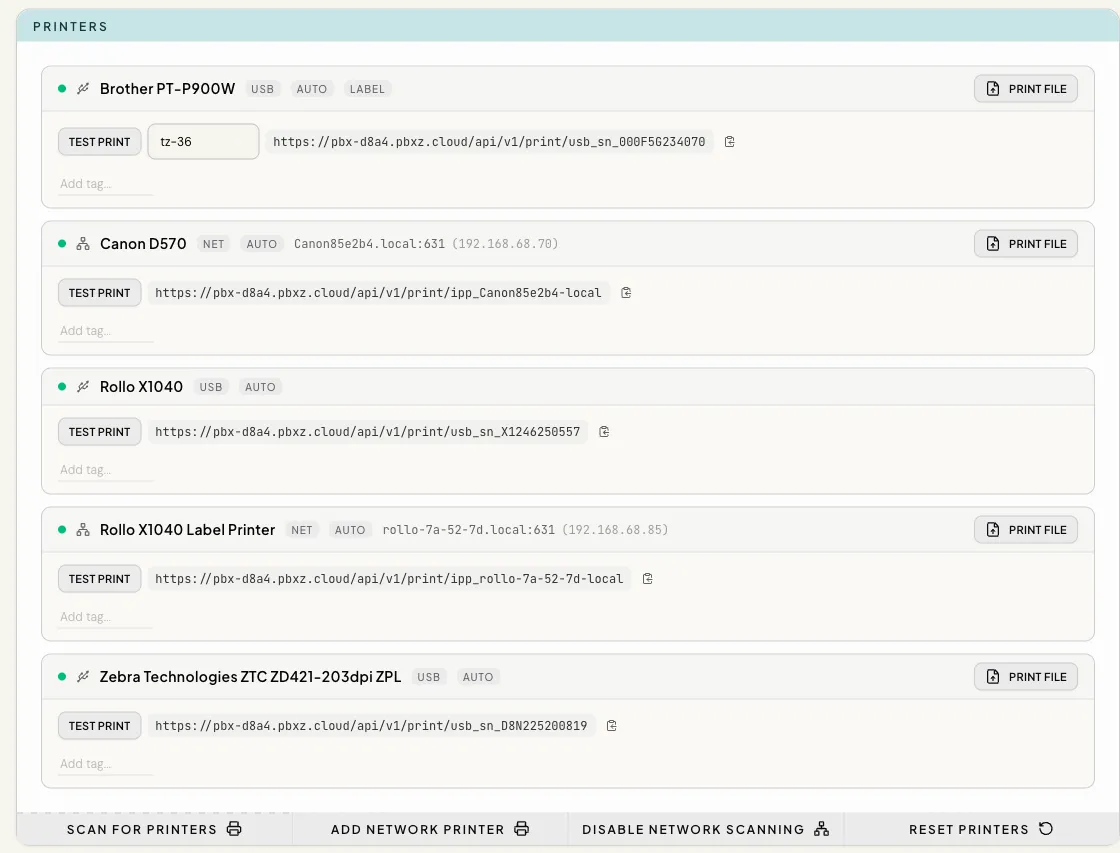
- Scan for Printers — refreshes the list of available printers. When network scanning is on, it searches the network and checks USB connections. When network scanning is off, it refreshes USB-connected printers but does not search the network.
- Add Network Printer — enter IP Address and Port (default 9100), then select Add Printer. This is for printers that don’t advertise themselves (common with raw TCP printers like Zebra label printers on port 9100). Manually added printers persist across reboots.
- Reset Printers — removes every manually added printer and every tag from the device. See Resetting Printers.
When ProxyBox Zero Looks for Printers
Section titled “When ProxyBox Zero Looks for Printers”ProxyBox scans when something has changed, not on a timer:
- At startup, a few seconds after the device boots.
- When you plug a USB printer in or unplug it. The printer appears in the list, or leaves it, within a few seconds. You do not need to press Scan for Printers.
- When you press Scan for Printers. Use this after a network printer comes online or changes address.
- When you change the Network Scanning setting.
A scan never interrupts a print job. If a USB printer is printing when a scan starts, ProxyBox waits until the job finishes before it rechecks the USB ports, so a print in progress is never cancelled by discovery.
Network Scanning
Section titled “Network Scanning”Use Disable Network Scanning when you do not want ProxyBox to find printers advertised on your local network — for example, when you use only USB printers or add every network printer manually. When scanning is off, the button changes to Enable Network Scanning.
Selecting either button opens a confirmation dialog:
- Disabling warns: “This turns off network scanning. A rescan runs immediately on apply, and discovered network printers will be removed from the list.”
- Enabling explains: “This turns on network scanning. A rescan runs immediately on apply.”
Apply changes the setting and runs the rescan before the dialog closes. Cancel leaves the current setting unchanged. When you disable network scanning, the rescan removes printers found through network scanning. Network printers added with Add Network Printer and printers connected by USB stay in the list.
Resetting Printers
Section titled “Resetting Printers”Use Reset Printers to start over with printer configuration — for example, when a device moves to a different site or you want to clear out old manual entries in one step.
Selecting it opens a confirmation dialog. Reset removes every printer added with Add Network Printer, along with its print queue, and removes every tag from the device. Cancel changes nothing.
Printers found by scanning — network printers advertising on your LAN and printers connected by USB — stay in the list, because ProxyBox finds them again on the next scan anyway. Your password, API keys, and all other settings are not affected. Tags are removed even when they point at a printer that stays listed, so re-create any tags you still need afterwards (see Tags).
Printer Details
Section titled “Printer Details”Each discovered or added printer has a card with the following details and controls:
| Field | Description |
|---|---|
| Model and connection | The printer’s model name, a Net, USB, or IPP-USB badge, and AUTO for discovered printers. Network printers also show their hostname or IP and port, with a resolved local IP when available. |
| Queue status | The dot indicates Print queue ready, Print queue error, or Print queue status unknown. Printers with a queue error show its reported reasons below the header. |
| Print addresses | Full print URLs, each with a copy button. USB printers can also show an address based on the USB port. |
| Tags | Labels you assign to the printer for tag-based routing. See Tags for details. |
| Test Print | Sends a sample print job to verify the printer works. |
| Print File | Available for printers that accept PDF or ZPL files. Choose one file, review Type, File, Size, and Printer, then select Print or Cancel; you can also drag a file onto the printer’s card. |
| Reset Printer | (Network ZPL printers only) Clears the printer’s buffer and cancels pending jobs. See Resetting a Stuck Printer in the Zebra guide. |
| Delete printer | Manually added printers have a trash button. It opens Delete Printer; select Delete to remove the printer or Cancel to keep it. |
Print File accepts PDFs only on printers that support PDF printing, and ZPL files only on ZPL printers. The dialog reports Cannot Print File for an unsupported file or printer, then Printing, Print Complete, or Print Failed after you submit a supported file.
A USB Brother P-touch printer shows the tape it reports and when that tape was last checked, for example Tape: 24 mm laminated tape (auto-detected) · checked 2 min ago, and a Check tape button. There is no tape selector. Test Print uses the detected tape. When no cassette is loaded, the tape isn’t supported, the printer reports an error, the tape can’t be read, or the tape has not been checked yet, the card shows the problem and how to fix it, and a Tape problem badge:
- No tape cassette loaded. Insert a cassette, then check again.
- This tape isn’t supported. Load a Brother TZe tape cassette, then check again.
- The printer reports an error. Check that the cover is closed and the tape isn’t jammed, then check again.
- Couldn’t read the tape. Make sure the printer is on and connected by USB.
- Tape not checked yet. The printer is printing. Check again when it finishes.
A network-connected Brother P-touch printer has a Tape selector beside Test Print. The test label uses the tape you select.
For Brother QL printers, choose the loaded label roll in the Label roll selector beside Test Print. A PDF’s page size still determines the media for file printing.
Recent Print Jobs appears when IPP jobs are available, showing their target and state. IPP Server appears when IPP service advertising is enabled and services are advertised, showing the port, activity status, job count, and Advertised Services.
Print Queues (CUPS)
Section titled “Print Queues (CUPS)”Print Queues (CUPS), collapsed below Printers, is an advanced troubleshooting view of the device’s print queues. You don’t need it for printing through the API.
Expand it with its arrow to inspect queues, including managed queues. A queue’s arrow shows Device URI, Driver when available, Status, and Accepting; Expand All, Collapse All, and the refresh button control the queue view.
Stopped or disabled queues have an Enable button; active queues have a power button to disable them, and queues without the managed badge have a trash button to delete them. If CUPS Daemon Not Running appears, Restart CUPS restarts the print service.
Expand Print Jobs to filter by queue, cancel an unfinished job with its × button, or select several and choose Cancel Selected. Expand Error Log to filter log entries by queue and refresh them with its refresh button.
Add CUPS Queue opens Name & URI, Driver, and Review steps: enter Queue Name, Device URI, and an optional description, select a driver, then select Create Queue. Quick Fill from Known Printers fills a listed printer’s URI; driver choices include IPP Everywhere (Driverless), Zebra ZPL, Other Driver with Filter drivers…, and Raw (No Driver).
Printer-Specific Behavior
Section titled “Printer-Specific Behavior”Some printer families come with extra behavior or format requirements — Zebra printers get a pre-flight health check before every network print job, Brother label printers require the PDF page size to match the loaded tape, and office printers accept the full set of print options. See the Printer Guides for details by manufacturer.
ProxyBox Zero Docs v1.0.29