
Printers
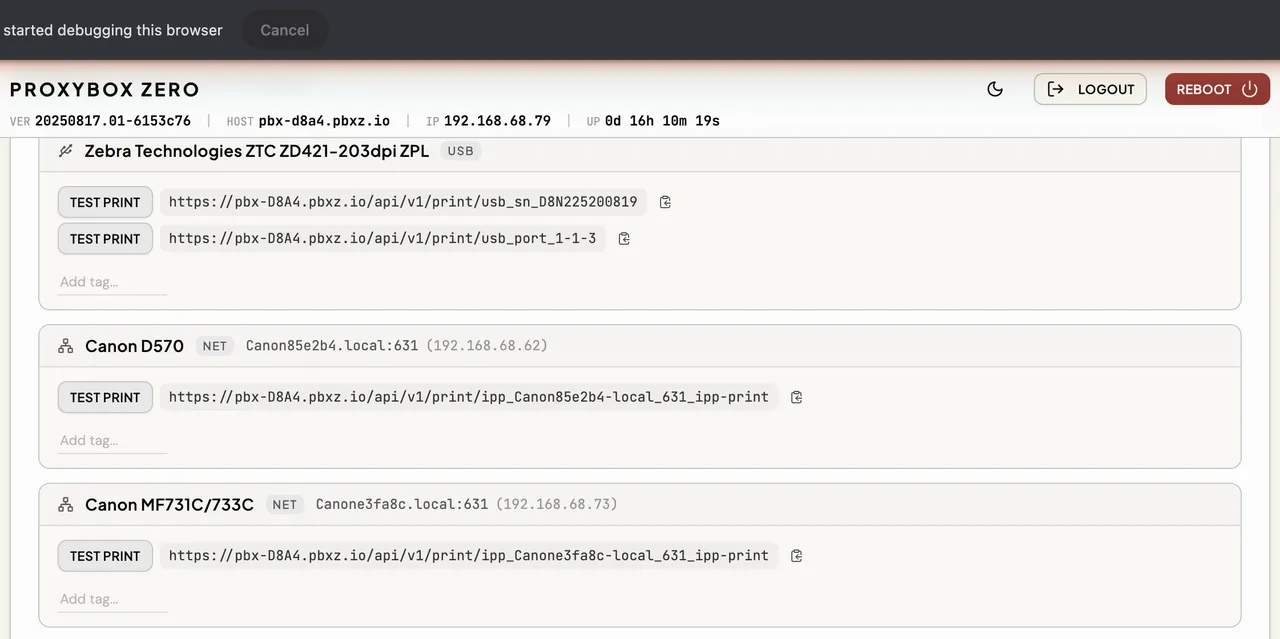
The Printers module is where you see everything ProxyBox has found on your network and USB ports. When you first boot your device, it automatically scans for printers — network printers advertising via mDNS/Bonjour and anything plugged in via USB show up here without any configuration.
- Scan for Printers — forces a re-scan for available printers on the network and USB. Useful if you just plugged something in or a printer came online after boot.
- Add Network Printer — manually add a printer by IP address and port. This is for printers that don’t advertise themselves (common with raw TCP printers like Zebra label printers on port 9100). Manually added printers persist across reboots.
Printer Details
Section titled “Printer Details”Each discovered or added printer shows the following:
| Field | Description |
|---|---|
| Model Name | The name advertised by the printer, or Unknown if unavailable. |
| IP Address | Hostname or IP. Auto-discovered printers show <host>.local:<port>, manually added show <ip>:<port>. |
| Printer Path | The API path used to send print jobs to this printer. Copy this into your application’s print target. |
| Tags | Labels you assign to the printer for tag-based routing. See Tags for details. |
| Test Print | Sends a sample print job to verify the printer works. |
| Reset Printer | (ZPL printers only) Clears the printer’s buffer and cancels pending jobs. See Resetting a Stuck Printer. |
Pre-flight Status Check
Section titled “Pre-flight Status Check”Before sending a print job to a TCP network printer (like a Zebra label printer), ProxyBox queries the printer using the ZPL ~HS (Host Status) command. If it finds a problem, the job is rejected with a 503 Service Unavailable response — saving you from wasted labels and confusing “successful” responses that produce nothing.
| Condition | Description |
|---|---|
| Paper Out | The printer has run out of labels or paper. |
| Paused | The printer is paused, often needing calibration after the lid was opened/closed. |
| Head Open | The print head is currently open. |
| Ribbon Out | The ribbon has run out (thermal transfer printers). |
If the status query itself fails (printer is off or unreachable), the check is skipped and the job is attempted anyway — normal error handling will report the failure.
Resetting a Stuck Printer
Section titled “Resetting a Stuck Printer”Zebra printers can get stuck when they receive an incomplete ZPL format block — for example, a ^XA (start format) without a matching ^XZ (end format). The buffer sits waiting for the rest of the command, and every subsequent job queues behind it. Nothing prints.
Symptoms:
- Jobs send successfully (you get a
200response) but nothing comes out of the printer - The printer’s web config page may show “busy processing another request”
- Power cycling may not resolve it if the buffer is persisted in memory
Click Reset Printer in the admin UI. This sends ^XZ to close any open format block, followed by ~JA to cancel all pending formats in the receive buffer.